A Gamer's Guide: How I Properly Uninstalled Valorant and Riot Vanguard in 2025
Uninstall Valorant and Riot Vanguard effortlessly with our step-by-step guide, ensuring a clean and hassle-free removal from your system.
Valorant has carved out a legendary status in the competitive FPS scene, maintaining a massive, dedicated player base even years after its release. Its tight gameplay and evolving meta have kept it relevant where many other titles have faded. However, the reality of being a gamer in 2025 means sometimes you need to make space for new adventures or simply take a break. If you find yourself in that position, wanting to uninstall Valorant, you'll quickly discover it's not as simple as hitting 'delete' on any other game. The process is intertwined with Riot's core-level anti-cheat, Vanguard, requiring a specific, careful approach to remove everything cleanly from your system.

Why Uninstalling Valorant is a Unique Challenge
Here's the core issue I faced: unlike most video games, you can't just uninstall Valorant directly from the Riot Client. The notorious—and admittedly effective—Riot Vanguard anti-cheat system gets in the way. Vanguard is brilliant at its job, operating on a kernel level to prevent cheating software from even launching. This deep integration with your system's core is what makes it so powerful, but it also means it functions more like a critical driver than a simple application. Consequently, you can't play Valorant without it, and you certainly can't cleanly uninstall the game without addressing Vanguard first. It's a two-part package deal.

My Step-by-Step Process to Remove Riot Vanguard
The first and most critical step is disabling Vanguard. You cannot uninstall it while it's actively running. Here is the exact process I followed:
-
Locate the System Tray: On my Windows taskbar, I clicked the upward arrow to show hidden icons.
-
Find Vanguard: I looked for the red and black Vanguard shield icon.
-
Exit the Program: I right-clicked on the Riot Vanguard icon and selected Exit Vanguard.
-
Confirm the Action: A confirmation pop-up window appeared, asking if I was sure I wanted to disable Vanguard. I clicked Yes. 💻
With Vanguard disabled, I could then proceed to uninstall it permanently.
-
Open Control Panel: I navigated to the classic Windows Control Panel.
-
Go to Programs: I selected Programs and Features (or "Uninstall a program").
-
Locate and Remove: I scrolled through the list, found Riot Vanguard, right-clicked on it, and selected Uninstall. I followed any on-screen prompts to complete the removal.
Completing the Uninstallation: Valorant and the Riot Client
With the gatekeeper gone, removing Valorant itself became straightforward. I went back to the Programs and Features menu in the Control Panel, searched for Valorant, right-clicked, and selected Uninstall. The game's files were then removed from my PC.
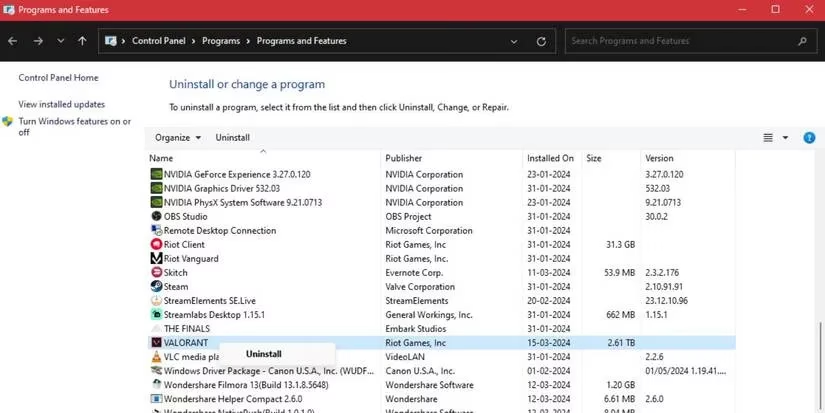
However, my job wasn't quite finished. To ensure no leftover files remained, I needed to address the Riot Client. This is the launcher that manages Riot's games. I used the same method:
-
Went back to Programs and Features.
-
Found Riot Client (or "Riot Games").
-
Right-clicked and selected Uninstall.
🔔 Important Note: You should only uninstall the Riot Client if you do not play any other Riot Games titles, such as League of Legends. If you do, you must keep the client installed to access those games. Uninstalling it will remove your access point to Riot's entire ecosystem.
Final Thoughts and Considerations for 2025
Following these steps allowed me to reclaim a significant amount of disk space. The process, while not a simple one-click affair, is logical when you understand how deeply Vanguard integrates for security. If you're uninstalling out of momentary frustration after a tough match, know that reinstalling is always an option via the official website. But if you're making a conscious decision to move on, this method ensures a clean break. Remember, managing your gaming library is part of the modern PC experience, and knowing how to properly handle these more complex installations is a valuable skill for any player.
Comments